
MT12 Gyro Control Module
FPV ControllerThe MT12 gyro enables control of two channels using hand gestures, allowing you to operate devices such as a pan/tilt gimbal, RC tank turret, rear wheel steering, and more. When…
Specifications
| SKU | HP0157.MT12-0047 |
|---|---|
| Accessories | |
| MT12 Accessories | |
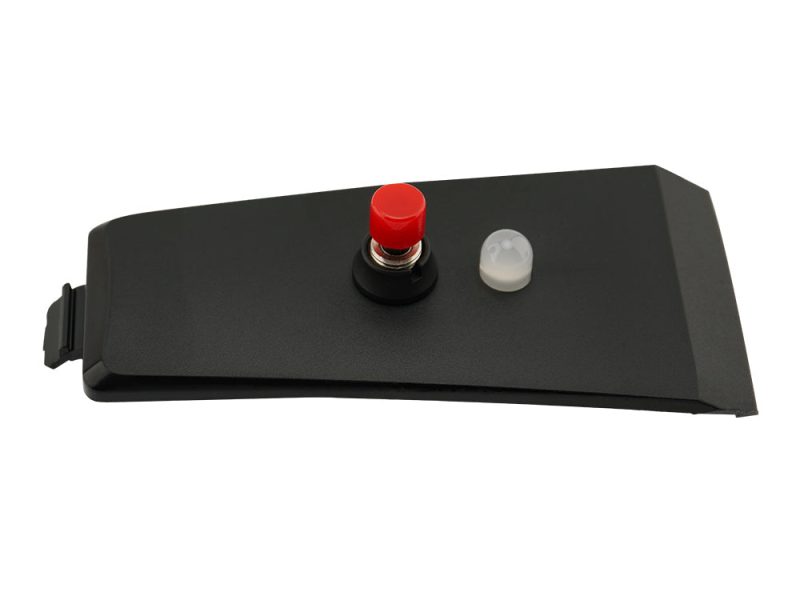
The MT12 gyro enables control of two channels using hand gestures, allowing you to operate devices such as a pan/tilt gimbal, RC tank turret, rear wheel steering, and more. When installed in the MT12 expansion slot, this two-axis gyro integrates your hand movements into the control stream through the advanced mixing and programmability of EdgeTX. The only limit is your imagination! Specifications Power Supply: DC 3.3V Weight: 8.3g Dimensions: 65.0*33.0 mm X-axis Angle Range: 90° [-45° to 45°] Y-axis Angle Range: 90° [-45° to 45°] Installation Remove the battery from the bottom of the MT12 Remove the top cover from the MT12 by pushing away from the grip Install the Gyro module at the top of the radio base Plug the cable into the 5pin connector in the battery compartment How to use Settings related to MT12 Radio 1. Press the “SYS” button and use the “PAGE” button to navigate to the “HARDWARE” menu. Set “S3” and “S4” under “Pots” to “Axis X” and “Axis Y”, respectively, as shown in the diagram below: *Arrows behind Axis X and Axis Y represent the direction settings. After selecting with the scroll wheel, you can press the scroll wheel to modify the direction. 2. Calibration in MT12. Press the “SYS” button and use the “PAGE” button to navigate to the “HARDWARE” menu. Enter the “[Calibration]” menu to calibrate. The calibration method is the same as the process for calibrating other inputs on MT12. At the “SET AXIS MIDPOINT” step, place the MT12 on a table and keep it level, then press the scroll wheel to calibrate the neutral point. At the “MOVE AXIS/POTS” step, in addition to calibrating the maximum values of the existing directions and throttle, you also need to pick up the MT12 and move it back and forth and side to side, with angles greater than 45 degrees. 3. Input menu settings. Press the “MDL” button, then use the “PAGE” button to navigate to the “INPUT” menu. You must bind the gyro output to two input channels in this menu. For example, bind Axis X (S3) to “I09” and Axis Y (S4) to “I10”. For “I09” as an example, enter the “Edit” menu of input channel 09. Select “Source” and press the scroll wheel, which will cause it to blink. At this point, tilt MT12 left and right, and the system will automatically switch the input source to “Source S3”, as shown in the diagram below: 4. Mixer menu settings. Press the “MDL” button, then use the “PAGE” button to navigate to the “MIXER” menu. In this menu, you need to bind the gyro inputs to the actual receiver output channels. For example, use left-right tilting (Axis X) to control channel 3, and use forward-backward tilting (Axis Y) to control channel 4. For channel 3 as an example, enter the “Edit” menu for channel 3. Select “Source” and press the scroll wheel, which will cause it to blink. At this point, tilt MT12 left and right, and the system will automatically switch the input source to “I09”, as shown in the diagram below: Gyro Sensor Calibration To accommodate different users’ holding gestures, you can calibrate the sensor’s neutral point by pressing and holding the red button for 2 seconds. During calibration, the red light will flash. A steady green light indicates normal operation. Associated Products MT12 Surface Radio Expansion Modules for MT12 Surface Radio MT12 Accessories Package Includes 1 * MT12 Gyro Control Module 1 * 5pin JST cable(installed on Module)
Frequently Asked Questions
Is this product in stock?
Yes — this item ships from our Shenzhen warehouse within 1–3 business days. Stock levels are updated regularly; contact our sales team for current availability and lead time on larger quantities.
Do you support OEM / ODM and custom branding?
Yes. As a factory-direct supplier we accept OEM/ODM orders including custom branding, packaging and firmware/parameter customization. Share your requirement with our sales team to get a tailored quote.
How do you ship, and what is the delivery time?
We ship worldwide via DHL, FedEx, UPS or air/sea freight. Small parcels usually arrive in 5–10 working days; bulk orders can be shipped by sea. Tracking is provided once the parcel leaves our warehouse.
Do you offer wholesale pricing and MOQ?
Yes, as a factory-direct supplier we offer wholesale pricing on this product. The minimum order quantity depends on the item and configuration — send your quantity and destination to our sales team and we will reply with an exact quote.
Do you provide warranty and after-sales support?
Yes, we provide technical support and after-sales service for our products. For the warranty terms specific to this product, contact our team and we will confirm the coverage period and the repair/replacement process.
Can you confirm compatibility before I order?
Yes. Before dispatch we can confirm that the product matches your radio, flight controller, goggles, frame or other equipment. Send us your build list and our engineers will verify compatibility before you place the order.
Related Products
HGLRC LED MINI Controller & LED (13MM/25MM/38MM)
RadioMaster TX12 Mark II Radio Controller
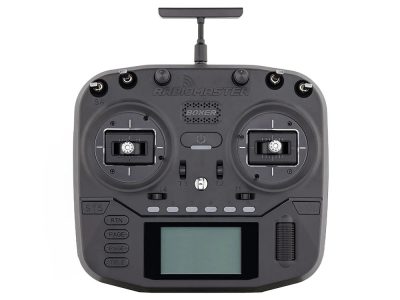
RadioMaster Boxer Radio Controller
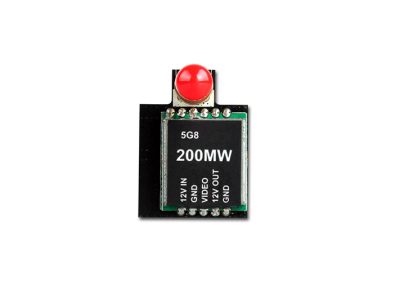
20-200MW FPV transmitter 5.8GHz 32CH Wireless AV Transmitter Module
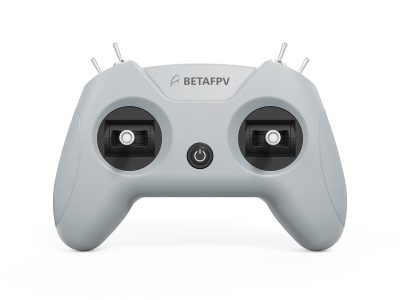
LiteRadio 2 SIM Controller
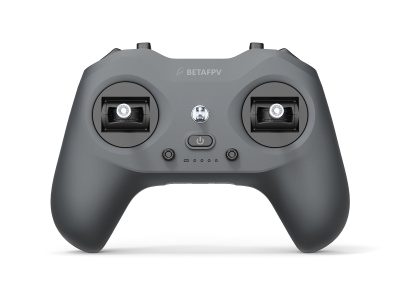
LiteRadio 4 Radio Transmitter

GEPRC FPV Transmitter Neck Strap for RC Radio Controllers
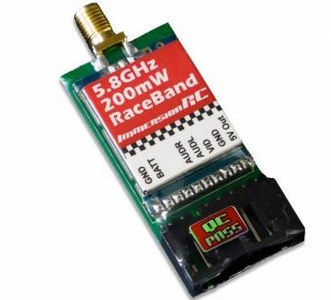
★ImmersionRC Raceband 5.8GHz 200mW A-V Powerful Transmitter For FatShark
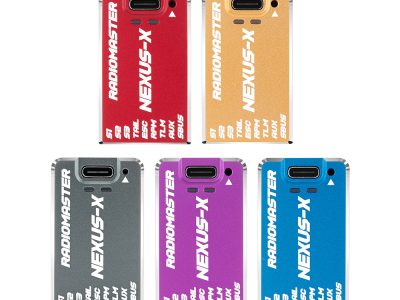
NEXUS-X Flight Controller
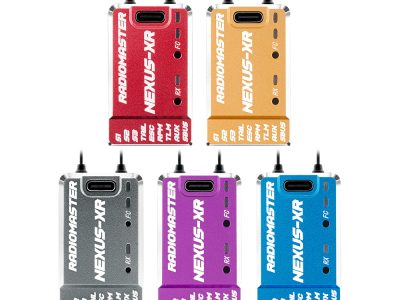
NEXUS-XR Flight Controller Integrated 2.4GHz ExpressLRS Receiver